
Interface overview
Use this page to locate the main areas of the app. The labels and gestures below match the current desktop interface and built-in example canvas.
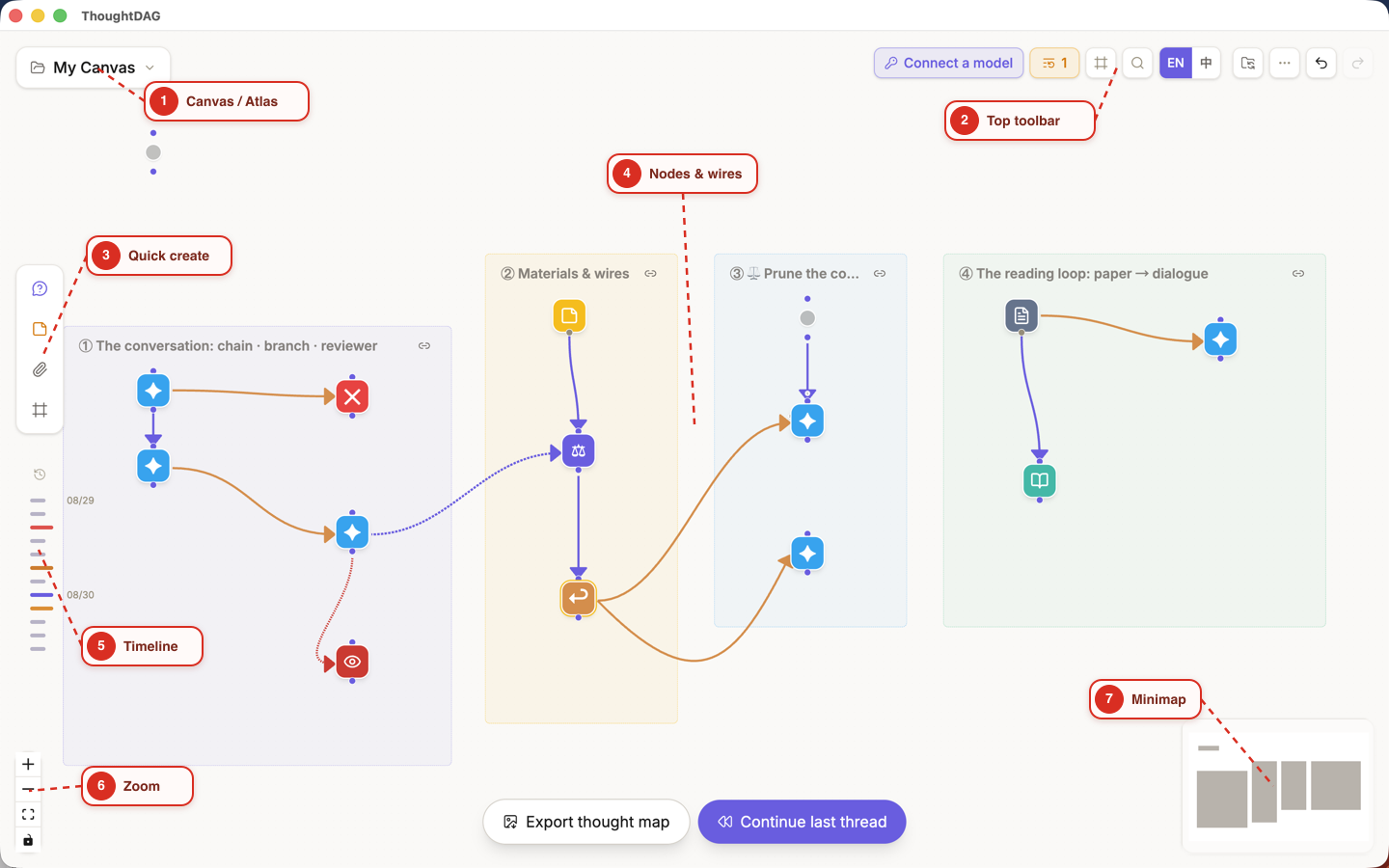
The red labels and dashed leaders are documentation overlays, not part of the ThoughtDAG interface. Open the unannotated screenshot to inspect the original UI.
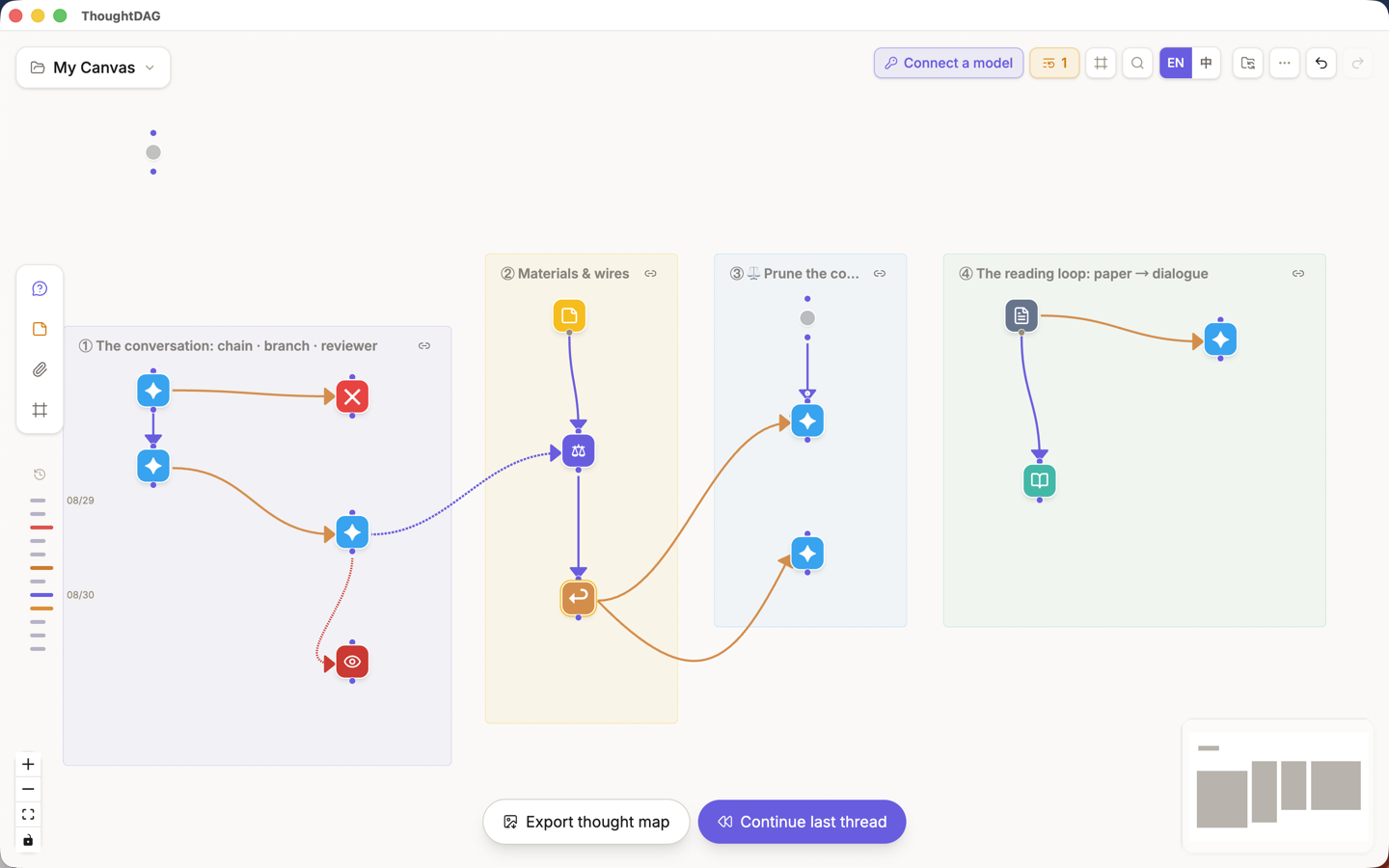
1. Toolbar
The canvas entry at the upper left switches projects and opens Session Atlas. The upper-right toolbar shows controls relevant to the current canvas:
- Model picker, including model and capability configuration;
- Replay stale, shown only when stale nodes exist;
- Frame navigator, shown only when frames exist;
- Search nodes, language, and Local auto-backup;
- More actions, undo and redo.
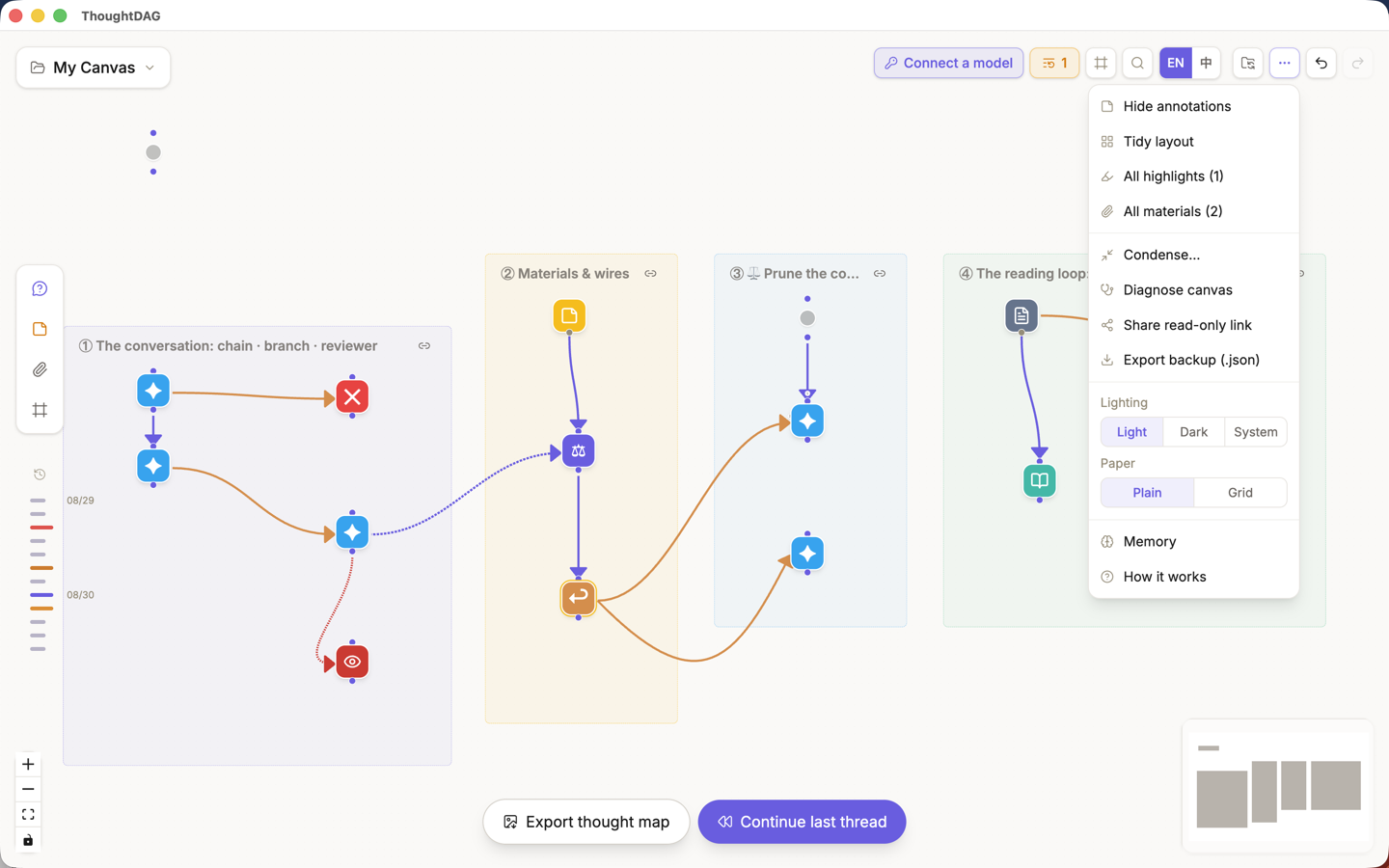
More actions menu
The upper-right ⋯ contains lower-frequency canvas-wide actions:
| Menu item | What it does |
|---|---|
| Show / Hide annotations | Temporarily shows or hides frames and unlinked material. This changes only the view; it neither deletes content nor changes model context. |
| Tidy layout | Rearranges node positions along wire direction after confirmation. It changes layout only. |
| All highlights | Collects every highlight on the canvas for locating, weaving, or Markdown export. Appears only when highlights exist. |
| All materials | Lists files, images, links, and other material nodes and locates them on the canvas. Appears only when material exists. |
| Condense | Finds conversation runs whose granularity can drop and creates a condensed copy beside the original graph. The original stays unchanged. |
| Diagnose canvas | Reports structural issues such as residual edges, shadow references, blind-pool breaches, and unusually long chains; it does not silently repair them. |
| Share read-only link | Runs a sensitive-content check, then creates a read-only viewer link. Recipients can browse but cannot modify the source canvas. |
| Export backup (.json) | Exports the active project's nodes, wires, and content as a local JSON backup for migration or recovery. |
| Export event log (.csv) | Exports timestamped asks, generations, highlights, archiving, and other canvas events. Appears only when events exist. |
| Lighting | Chooses Light, Dark, or System appearance. |
| Paper | Switches between plain and grid paper; grid paper also enables node snapping. |
| Memory | Opens cross-canvas ambient memory for viewing, editing, importing, or exporting. When memory is enabled, admitted entries join the system layer of ordinary generations. |
| How it works | Opens the built-in ten-step interaction guide and keyboard shortcuts. |
The menu omits actions that do not apply to the current canvas, so yours may be shorter than the screenshot.
2. Canvas
The canvas is the main workspace. Hold the middle or right mouse button and drag to pan, or hold Space and left-drag; the wheel or a pinch zooms. On a trackpad, turn on "Scroll pans the canvas" in the ⋯ menu: two-finger scroll then pans, pinch zooms, and ⌘/Ctrl + scroll zooms too. Left-drag on empty space to box-select, double-click empty space to create a question, and drag a node to reposition it. Selecting two or more nodes opens the multi-selection toolbar at the top. Zoom controls appear at the bottom, and the minimap can also pan and zoom the view. See Canvas, navigation, and frames for the complete interaction guide.
3. Nodes
The canvas has three main node families:
| Type | What it stores | How to create and open it |
|---|---|---|
| Question and answer | One question and its answer versions | Ask a question or continue from an existing answer; double-click the node to open the floating panel |
| Note | Editable text or Markdown | Create a note, or paste ordinary text onto the canvas |
| Material | PDFs, images, Word .docx, HTML, Markdown, plain text and common code files, plus web snapshots | Drop or paste a file; pasting a single web URL stores the fetched page and timestamp; double-click to enter the material reader |
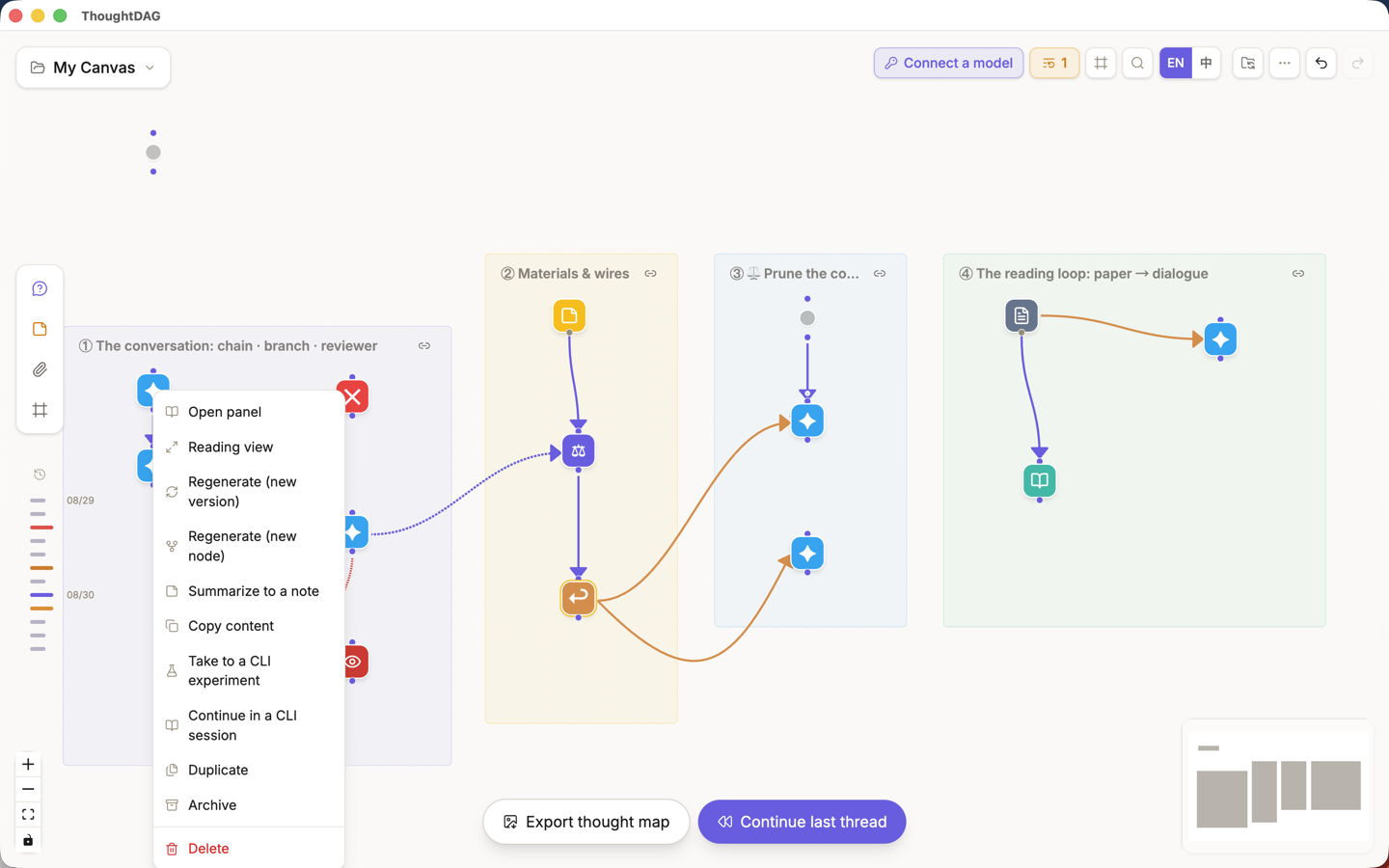
A question-and-answer node stores one question and its answer versions. Double-click the question to edit it; use the pencil button at the end of an answer to edit that answer. Right-click a node for its action menu; see Conversation nodes and panel.
Semantic icons on question-and-answer nodes
After a longer answer finishes, ThoughtDAG generates a short map summary in the background and classifies the role that exchange played in the reasoning. When you zoom out, the node displays the corresponding icon:
| Icon | Meaning |
|---|---|
| ✦ | Insight: learned or confirmed something |
| ✕ | Ruled out: rejected a hypothesis or option |
| ⚖ | Decision: chose among alternatives |
| ↩ | Pivot: reframed the question or direction |
| ? | Open: left an unresolved question |
These icons are not additional node types. They are semantic navigation marks and do not change the node content or automatically change model context. Short or unclassified exchanges remain neutral dots in the farthest zoom tier.
Reviewer and condensed nodes use their own dedicated marks. See Versions, staleness, and replay and Merge, highlight, and condense for their behavior.
4. Wires
- Purple solid wire: primary conversation path carrying full upstream context.
- Orange solid wire: an exploration branch created from selected text; it is still part of the context structure.
- Purple dashed wire: summary reference carrying the referenced question and answer plus the upstream question trail.
- Red dashed wire: sliding reviewer relationship.
Selecting a convertible wire shows its token estimate and conversion action. You can also delete the wire. See Control context.
5. Floating panel
The floating panel shows the full question and answer, active version, grouped context tree, highlights, references, and a follow-up box. It floats above the canvas without changing node positions.
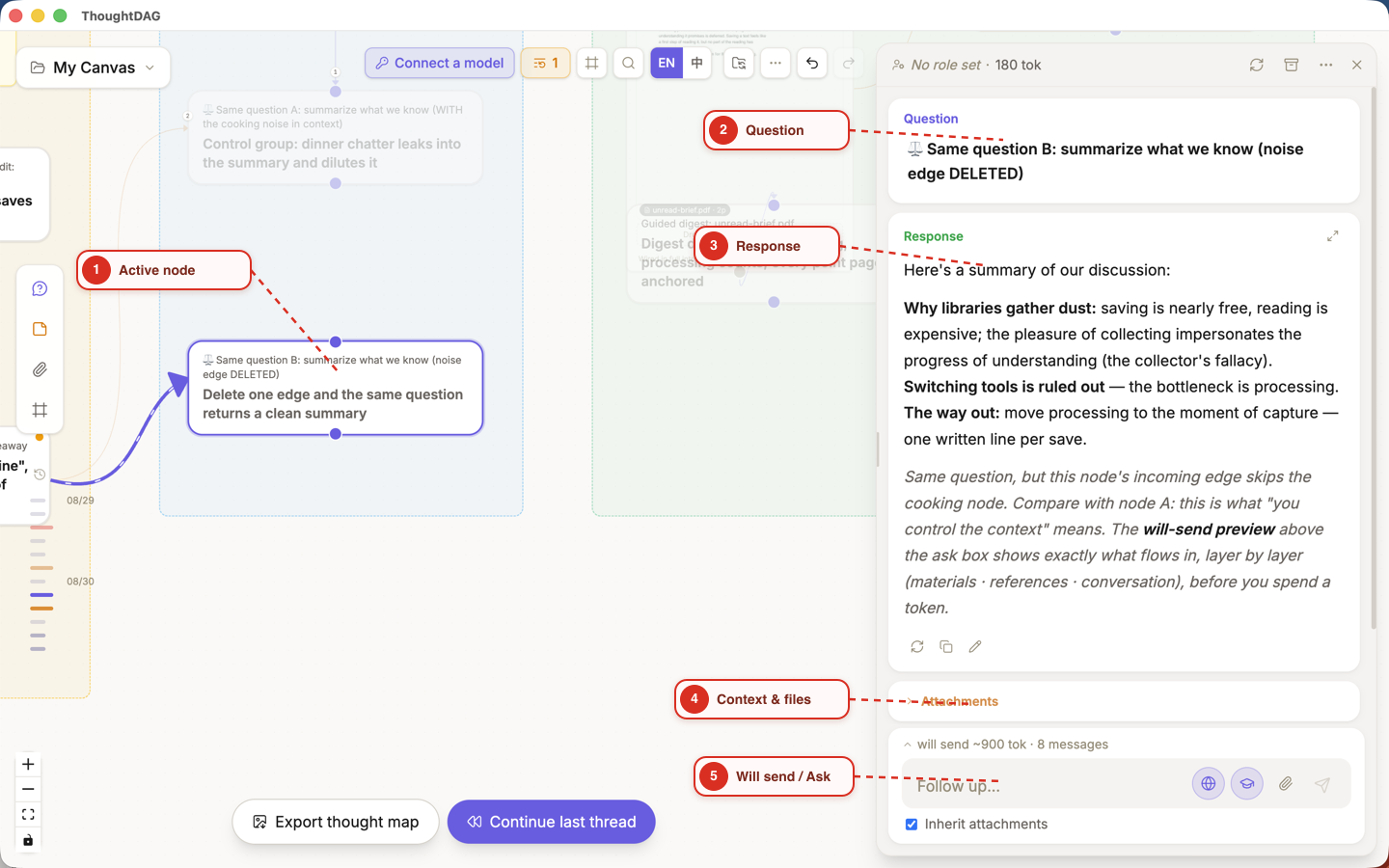
The red callouts locate the active node, question, response, context area, and follow-up entry. They are not part of the app UI.
6. Follow-up box and context preview
The box at the bottom of the floating panel continues from the active question-and-answer node. A summary line above it reads something like “will send ~900 tok · 8 messages.” This is not a separate toolbar button. Click the summary line to expand the context preview for the next follow-up.
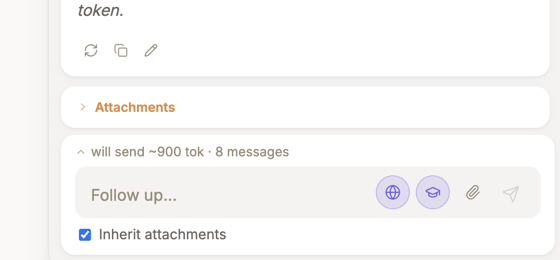
The expanded preview groups materials, explicit references, and conversation turns, and shows message and token estimates. This entry belongs only to follow-ups in the node panel. The main ask box used to start the first question on an empty canvas does not show this line.
Continue with Canvas, navigation, and frames, or go directly to Conversation nodes and panel.