
Canvas, navigation, and frames
Move around the canvas
- Hold the middle or right mouse button and drag to pan, or hold Space and left-drag.
- The wheel or a pinch zooms.
- Trackpad: turn on "Scroll pans the canvas" in the ⋯ menu; two-finger scroll then pans, pinch zooms, and ⌘/Ctrl + scroll zooms too. On a Magic Mouse, Control + click opens the context menu.
- Left-drag on empty space to box-select nodes.
- Drag a node to change its position.
The minimap and zoom controls provide another way to move through a large graph.
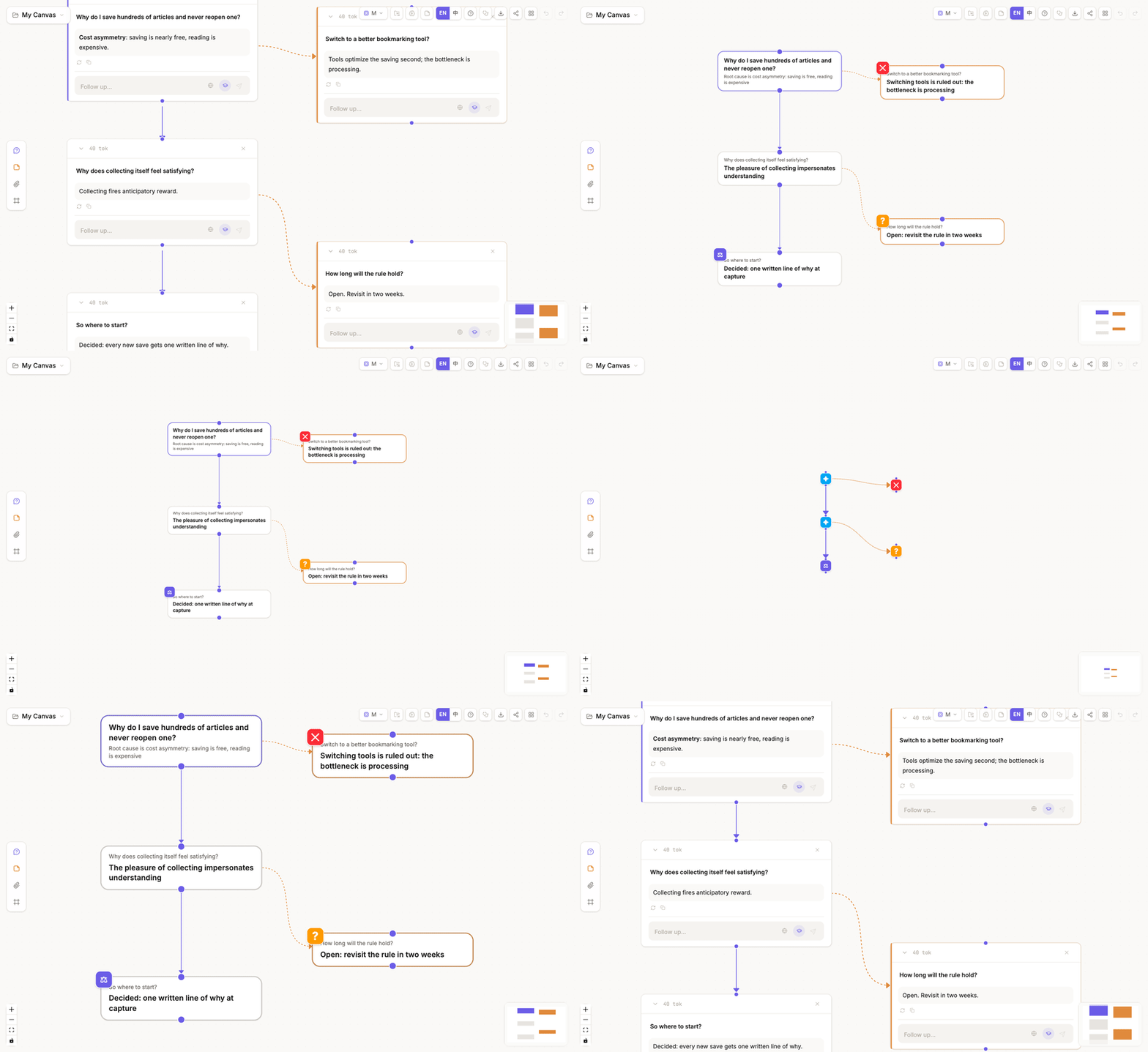
Change reading distance
As you zoom out, a node changes from a full card to a compact takeaway plaque and then to an icon-level marker. Its canvas position and connections stay the same. Semantic zoom changes presentation only; it does not change model context.
At the map and glyph tiers, two actions appear at the bottom of the canvas: Export thought map and Continue last thread.
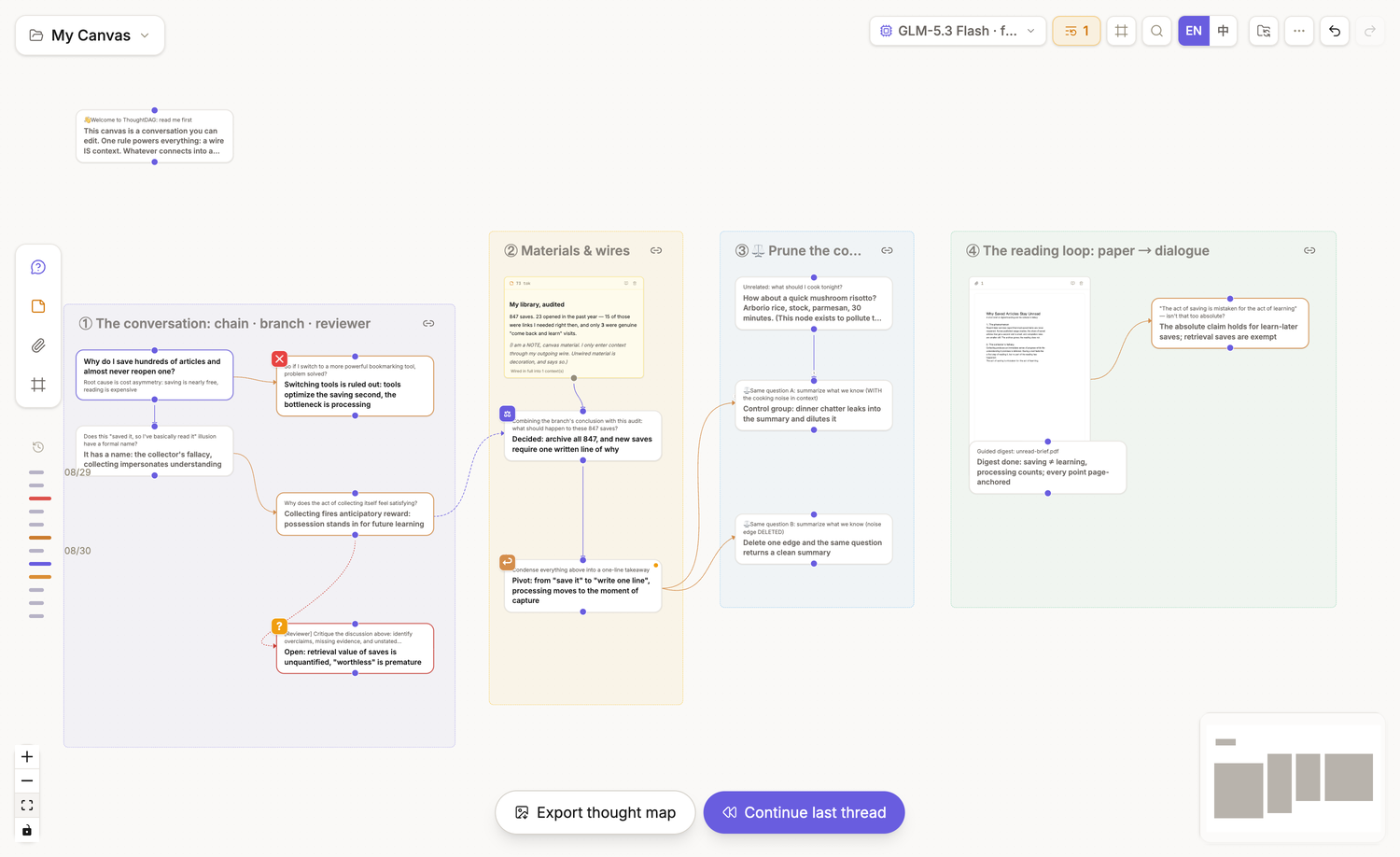
Generate a thought map from the canvas
Choose Export thought map to recompose the current nodes, wires, materials, and key marks as a shareable image. It is not a screenshot of the current viewport.
You can:
- write a public title, note, and signature, or ask the current model to draft the words;
- switch between Tidy and As arranged;
- adjust rotation, paper, map language, type size, counts, time ink, and date;
- check the feed thumbnail before downloading the PNG.
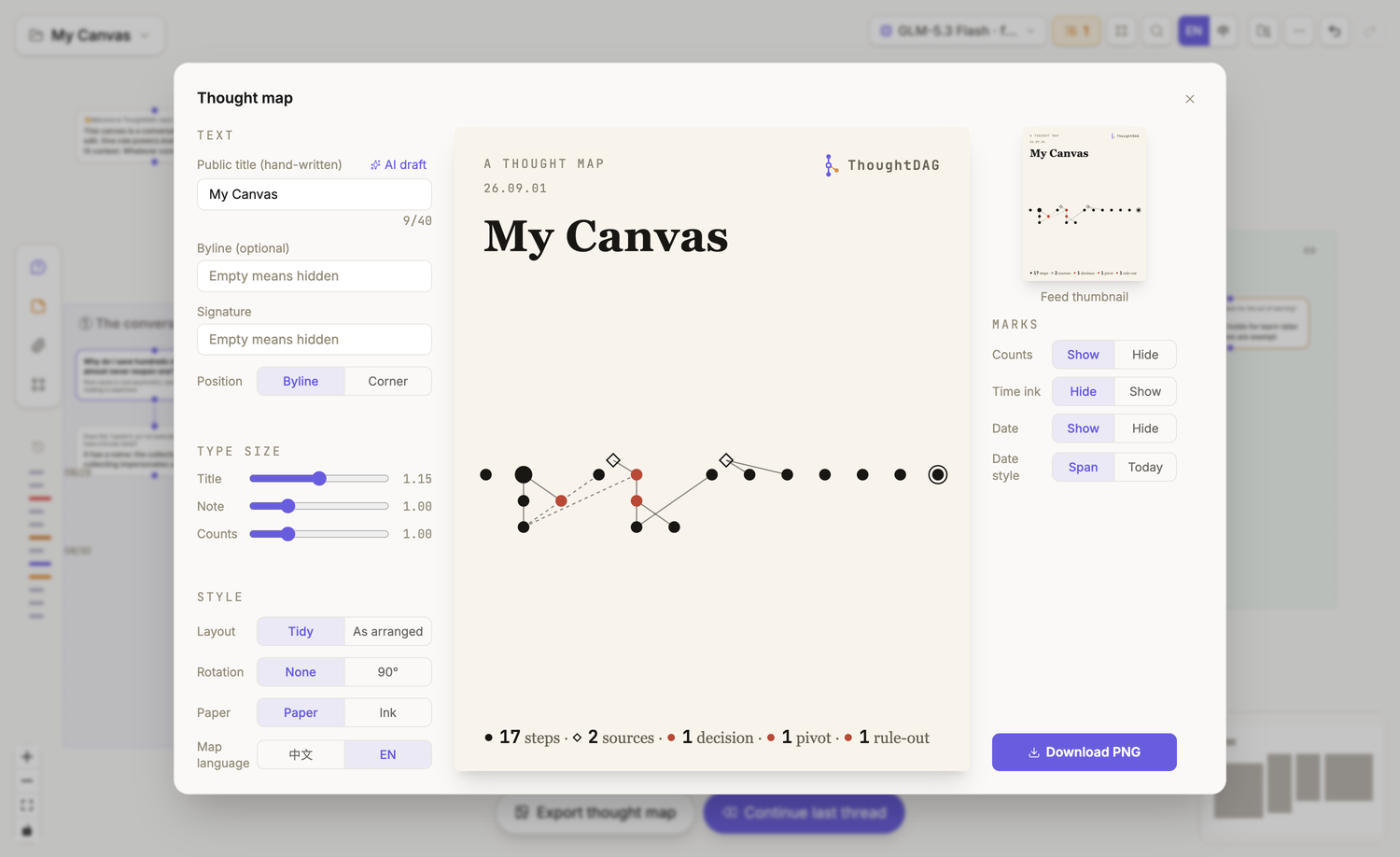
Exporting creates a separate image. It does not move canvas nodes or change model context.
Continue the last thread
Hover Continue last thread to reveal the most recently active conversation node on the map. Click it to fly back, restore a readable zoom, and open that node's panel.
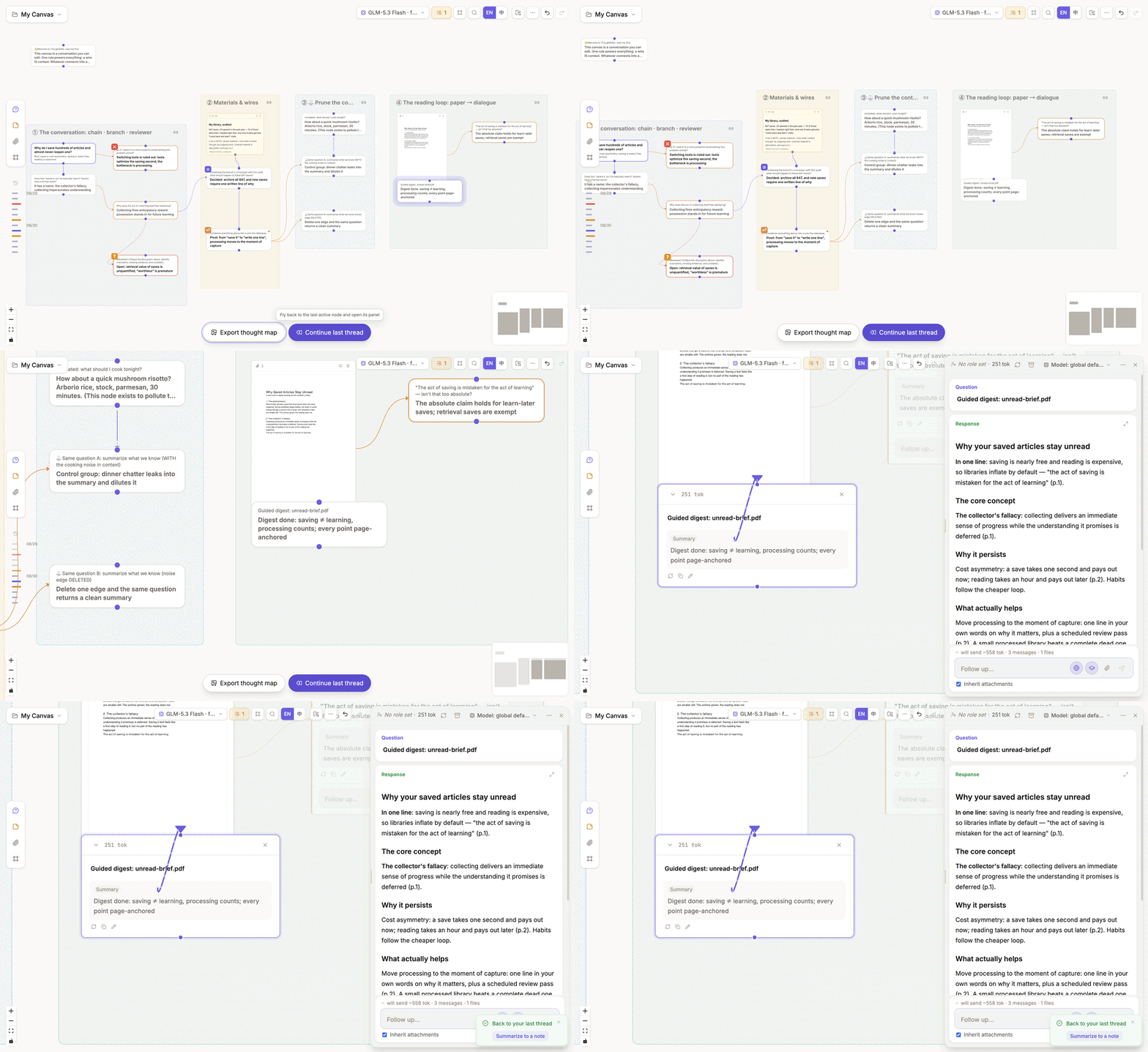
After arriving, continue the conversation directly or choose Summarize to a note. The recap lands as an unwired note: it is editable and deletable, but does not enter model context automatically.
Use search and keyboard navigation below when you know the target. Use Continue last thread when you are returning after a break and want to resume where the work last changed.
Find a node
- Choose Search at the top right, or press
Cmd+F/Ctrl+F, to find questions, answers, notes, highlights, links, or material names. - As you type, non-matching nodes fade. Use
↑/↓to choose a result and pressEnterto fly there, open its panel, and reveal the matching passage. - Select a node to reveal its structural path toward the root.
- Use the arrow keys to move along structural wires and press
Escto step out. See Keyboard shortcuts for the complete list. - When frames exist, the Frame navigator appears at the top right and jumps between named regions.
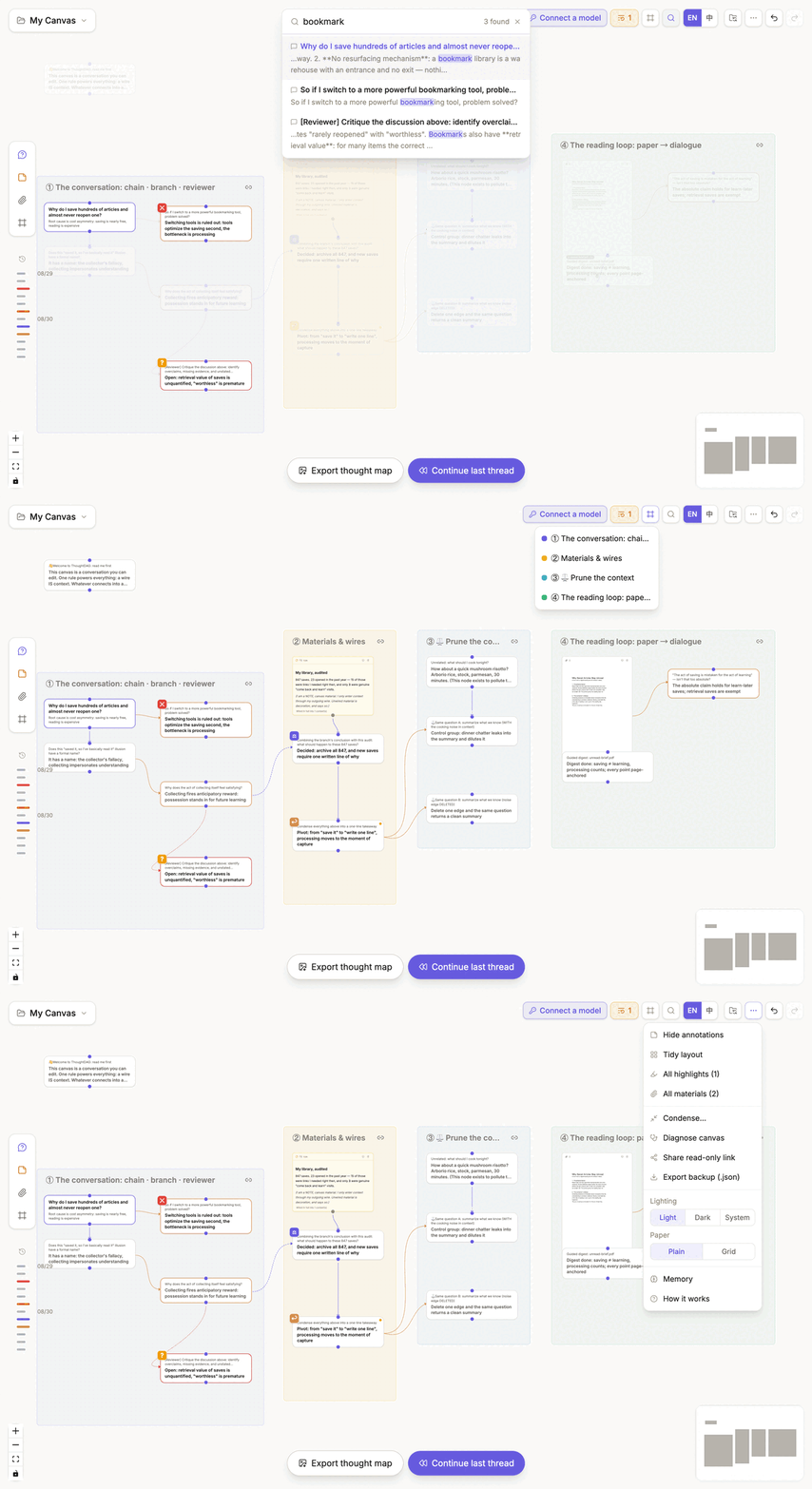
The recording cycles through Search nodes → Frame navigator → Tidy layout in More actions.
Arrange the graph
Tidy layout lives in the top-right More actions menu. After confirmation, it follows wire direction, keeps a conversation chain vertically aligned, and moves branches to the side. Align selection cleans up a local group without rebuilding the entire graph. Both operations change positions only, and neither moves or resizes a frame: a frame stays where you drew it, so after a tidy you may need to drag a frame back over the nodes that left it.
Use frames
Frames label and visually group a region. Use them when several branches still belong to the same project but need readable sections: click or drag the Frame button at the bottom of the left material palette, place the frame, then edit its title and color.
The chain button at a frame's top right controls movement. When linked, dragging the frame carries the nodes inside; when unlinked, only the frame moves. Once frames exist, use the Frame navigator shown above to jump between them. Hiding annotations simplifies the view without deleting content.
Multi-selection toolbar
Left-drag on empty canvas space to select two or more nodes. A toolbar appears at the top of the canvas with the node count, estimated tokens, and highlight count.
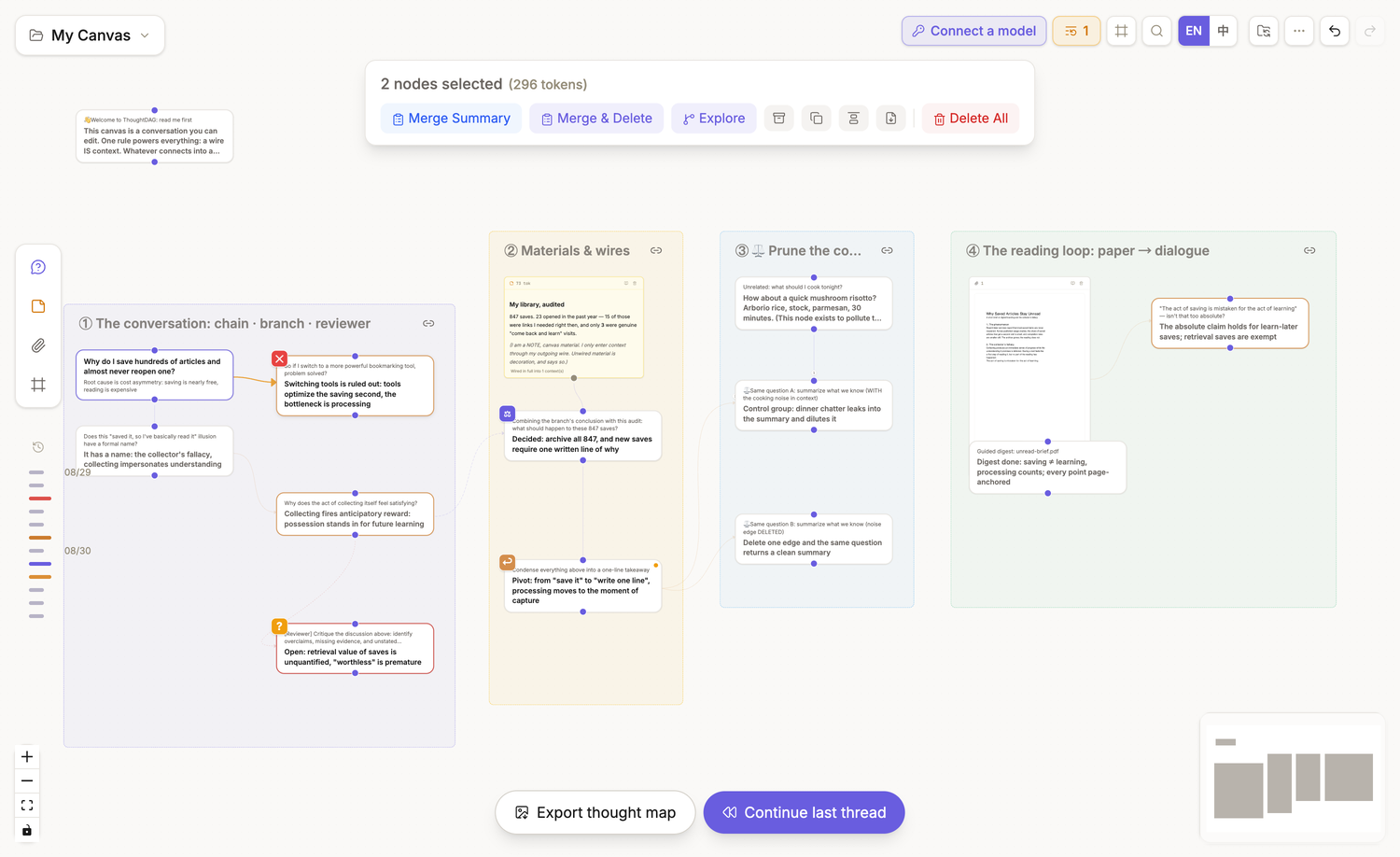
Frequent actions have text labels. Archive, duplicate, align, and export use icons whose names appear on hover. The table below explains what each action changes.
| Action | Result |
|---|---|
| Merge Summary | Keep the originals and create a synthesis node |
| Merge & Delete | Create the synthesis, then remove the selected originals |
| Weave highlights | When highlights exist, weave the selected excerpts into cited prose |
| Explore | Ask a new question using the selection as material |
| Archive | Keep the nodes but exclude them from context traversal |
| Duplicate | Copy the selection and its internal wires, excluding wires that cross its boundary |
| Align | Arrange the local selection by arrow relationships |
| Export .md | Export the selected nodes as Markdown |
| Delete All | Delete the selection after confirmation |
Click empty canvas space or press Esc to leave multi-selection.
Here, Explore opens a conversation branch, Merge Summary and Weave highlights create new content representations, Archive changes context traversal, and Export .md belongs to data and sharing.
Canvases and recovery
Use the canvas menu to create, rename, switch, or delete canvases. Each canvas keeps its own graph, materials, layout, and history. Use separate canvases for work that should not share a context graph; use branches or frames for directions that still belong together.
Use Cmd+Z / Ctrl+Z and redo for recent changes. For longer-term recovery, enable automatic folder backup.